Network troubleshooting is one of the most critical skills tested on the CompTIA Network+ exam. Real-world networking problems rarely present themselves as neat, textbook definitions; instead, users report vague symptoms, and it is up to the network technician to isolate the root cause systematically.
This comprehensive scenario walks through a classic IP addressing problem, demonstrating the exact troubleshooting methodology you need to master.
The Scenario: “I Have No Internet Access!”
Imagine you are working as a tier-2 support technician. A user, Sarah from the accounting department, submits an urgent IT ticket:
“My computer cannot connect to the company server or load any web pages. I keep getting a ‘No Internet’ error message, and I can’t access our shared network folder either.”
Instead of guessing or blindly restarting equipment, you apply a structured, step-by-step troubleshooting approach.
Step 1: Gather Information and Verify the Physical Layer
Before diving into complex IP configurations, always verify the basics (following the OSI model from Layer 1 upward).
- Check Physical Connections: Ensure the Ethernet cable is securely plugged into both the computer’s network interface card (NIC) and the wall jack or switch port.
- Check Link Lights: Look at the status LEDs on the NIC. A blinking link light indicates active physical connectivity.
- Scenario Finding: Sarah confirms her physical cable is securely plugged in, and the link lights are green and active. Layer 1 checks out.
Step 2: Check Local IP Configuration (IP Addressing & Subnetting)
Next, you need to check what IP address the computer thinks it has and whether it was assigned correctly. You ask Sarah to open the command prompt and run the command:
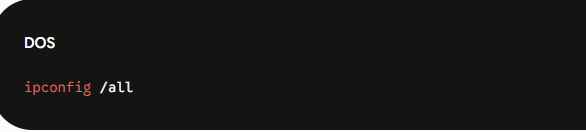
Upon reviewing the output, you spot a critical anomaly:
- IPv4 Address:
169.254.10.45 - Subnet Mask:
255.255.0.0 - Default Gateway: (Blank / Empty)
What does this mean?
The IP address starting with 169.254.x.x is an APIPA (Automatic Private IP Addressing) address. When a DHCP client boots up and fails to contact a DHCP server to lease a valid IP address, the Windows operating system automatically assigns itself an APIPA address.
Root Cause Identified: Sarah’s computer cannot communicate with the DHCP server, meaning it has no valid local IP address, no subnet mask mapped to the local network schema, and no default gateway to reach outside networks.
Step 3: Test Local Connectivity (The Loopback and Gateway Test)
To isolate whether the issue is isolated to Sarah’s machine or the network infrastructure, you test local communication.
- Test the Local TCP/IP Stack: Run the loopback test command:
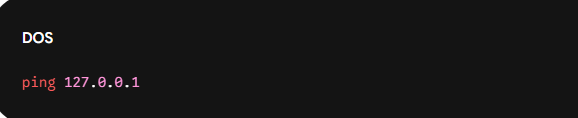
- Result: Successful replies. This proves the computer’s internal network stack and NIC driver are functioning properly.
- Test Communication with the Local Network: Try to ping the local router (Default Gateway). Result: Because the gateway field is completely blank and Sarah has an APIPA address, pinging fails immediately with “Destination host unreachable.”
Step 4: Investigate the DHCP Server and Network Path
Since the computer is failing to receive a dynamic address, you must determine why DHCP is failing. You check the broader environment:
- Is it isolated? You check if other users on the same floor/switch are experiencing the same issue. They are not. Their IP configurations are correct (e.g.,
192.168.1.x). This rules out a total DHCP server crash. - Switch Port / VLAN Mismatch: You check the switch configuration for Sarah’s port. You discover that the port was recently misconfigured and accidentally assigned to an incorrect VLAN (Virtual Local Area Network) where no DHCP scope exists. Because of this VLAN mismatch, Sarah’s DHCP broadcast requests (
DHCP Discover) cannot reach the DHCP server.
Step 5: Resolution & Verification
- Fix the Infrastructure: You log into the network switch management console and reassign Sarah’s port back to the correct data VLAN.
- Refresh the IP Lease: Back on Sarah’s machine, you clear the old configuration and force a new request by running:

followed by:
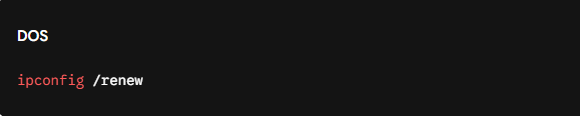
- Verify Success: Running
ipconfig /allnow shows a proper corporate IP address (e.g.,192.168.1.105), a correct subnet mask (255.255.255.0), and a valid Default Gateway (192.168.1.1). - Final Test: Sarah tries loading a web page and accessing the shared accounting drive. Everything works seamlessly. Ticket closed!
Practice Makes Perfect
Troubleshooting scenarios like this require pattern recognition and hands-on practice under timed pressure.
Ready to test your knowledge? Subnetting and troubleshooting are core pillars of the exam. If you want to see how well you are truly prepared for test day, check out my complete practice courses designed specifically to simulate real exam conditions:
- 🚀 Option 1 (Udemy): Get access to the CompTIA Network+ 6 Full Mock Exams (600 Questions total / 6 exams with 90 questions each), crafted meticulously to match the exact style, difficulty, and pressure of the official exam.
- 📺 Option 2 (YouTube): Watch our curated video breakdown series containing guided Practice Tests on our official YouTube channel to sharpen your visual diagnostic skills.
Looking for a deep dive into troubleshooting methodology?
While scenario practice is crucial, mastering the underlying theory of protocols, IP addressing, and troubleshooting steps is vital for exam day. I highly recommend using the CompTIA Network+ N10-008 Cert Guide by Anthony Sequeira on Amazon as your core reference manual alongside these practice materials.