
When studying for the CompTIA Network+ exam, few topics are as heavily tested or as practically useful as networking port numbers. Every time a device communicates over a TCP/IP network, it relies on ports to direct traffic to the correct application running on the operating system. If you confuse your TCP ports with your UDP ports, or mix up standard administrative ports, troubleshooting network traffic becomes nearly impossible.
In this comprehensive guide, we will break down how ports work, provide an extensive cheat sheet categorized by services, examine real-world troubleshooting examples, and test your knowledge with exam-style scenario questions.
1. Understanding TCP/IP Ports: The Apartment Building Analogy
To understand ports clearly, imagine an enterprise office building (the server) with a single public street address (the IP address). When mail or a delivery arrives at the building, the delivery driver needs more than just the street address; they need a specific apartment or room number to drop off the package correctly.
In computer networking:
- IP Address: Identifies the specific device on the network (the building address).
- Port Number: Identifies the specific service or application running on that device (the apartment number).
Ports range from 0 to 65535 and are officially divided by the Internet Assigned Numbers Authority (IANA) into three main categories:
- Well-Known Ports (0 – 1023): Reserved for core, standard network services (e.g., HTTP, DNS, SSH).
- Registered Ports (1024 – 49151): Assigned by IANA for specific vendor applications or user programs.
- Dynamic / Private / Ephemeral Ports (49152 – 65535): Used temporarily by client operating systems to establish outgoing communication sessions.
2. The Ultimate Network+ Port Numbers Cheat Sheet
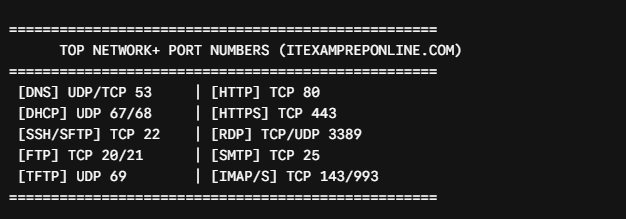
A. Core Network Infrastructure & Name Resolution
- Port 53 — DNS (Domain Name System): Translates human-readable domain names (like
itexampreponline.com) into IP addresses. Uses both UDP (for standard quick queries) and TCP (for zone transfers and large responses). - Port 67 / 68 — DHCP (Dynamic Host Configuration Protocol): Automatically assigns IP addresses, subnet masks, and default gateways to clients. Uses UDP. (Port 67 is server, Port 68 is client).
- Port 123 — NTP (Network Time Protocol): Synchronizes the clocks of computers across a network to ensure accurate logging and authentication. Uses UDP.
B. Remote Access & Administration
- Port 22 — SSH (Secure Shell) / SFTP: Provides secure, encrypted terminal access to remote network devices and servers, replacing older unencrypted utilities. Uses TCP.
- Port 23 — Telnet: An unencrypted, legacy text communications protocol used for remote device management. Exam Warning: Never use Telnet in production; all data (including passwords) travels in cleartext. Uses TCP.
- Port 3389 — RDP (Remote Desktop Protocol): Microsoft proprietary protocol allowing users to connect to a desktop graphical interface remotely. Uses TCP/UDP.
C. File Transfer Protocols
- Port 20 / 21 — FTP (File Transfer Protocol): Used for transferring files across a network. Port 21 is used for control commands, while Port 20 is used for active data transfer. Uses TCP.
- Port 69 — TFTP (Trivial File Transfer Protocol): A lightweight, simple file transfer protocol using UDP with no authentication, commonly used for bootstrapping or flashing router/switch firmware.
- Port 445 — SMB (Server Message Block): Used for sharing files, printers, and serial ports across a local network (Microsoft environments). Uses TCP.
D. Web & Email Services
- Port 80 — HTTP (Hypertext Transfer Protocol): Unencrypted web traffic standard. Uses TCP.
- Port 443 — HTTPS (HTTP Secure): Encrypted web traffic secured via SSL/TLS. Uses TCP.
- Port 25 — SMTP (Simple Mail Transfer Protocol): Used to route and send email between mail servers. Uses TCP.
- Port 110 — POP3 (Post Office Protocol v3): Downloads emails from a mail server to a local client, traditionally deleting them from the server. Uses TCP.
- Port 995 — POP3Secure (POP3S): Encrypted version of POP3. Uses TCP.
- Port 143 — IMAP (Internet Message Access Protocol): Keeps emails synchronized on the mail server so multiple devices can view them simultaneously. Uses TCP.
- Port 993 — IMAPSecure (IMAPS): Encrypted version of IMAP. Uses TCP.
- Port 389 — LDAP (Lightweight Directory Access Protocol): Used for querying and managing directory services (like Active Directory). Uses TCP/UDP.
- Port 636 — LDAPS (LDAP Secure): LDAP over SSL/TLS encryption. Uses TCP/UDP.
3. Real-World Troubleshooting Scenarios
Knowing the port numbers by heart is only half the battle on the Network+ exam. You must also know how to spot when a blocked port is causing an outage.
Scenario 1: The Corporate Web Server Lockout
- The Symptom: Users inside an office can browse public external websites, but internal employees cannot access the company’s local intranet web portal hosted on an internal server.
- The Diagnostic Step: An administrator checks the corporate firewall rules and notices that TCP Port 443 is allowed outbound, but TCP Port 80 or custom internal web ports are being blocked or misdirected, or SSL/TLS redirection is failing because port rules are missing.
- The Fix: Update firewall ACLs (Access Control Lists) to explicitly permit internal web service ports.
Scenario 2: Secure vs. Insecure Email Configuration
- The Symptom: A newly hired remote employee sets up their corporate laptop email client, but the application keeps timing out when attempting to sync folders or send outbound messages.
- The Diagnostic Step: The administrator checks the mail client settings and discovers the user manually typed legacy ports (like Port 110 for POP3 or Port 25 for SMTP) while the corporate mail server enforces strict encryption policies requiring Port 993 (IMAPS) and Port 465/587 (SMTPS/SUBMISSION).
- The Fix: Reconfigure the email profile to use the correct encrypted ports matching the company’s security policy.
4. Scenario-Based Exam Practice Questions
Practice Question 1
Question: A network administrator is troubleshooting a secure remote administration session to a Linux-based core router. The administrator attempts to connect from a management workstation, but the connection is immediately rejected. Upon reviewing packet captures and firewall rules, the administrator notices that port 23 is open on the firewall, but port 22 is blocked. Which action should the administrator take?
- A) Open port 23 to allow secure administrative access via Telnet.
- B) Open port 22 to allow secure administrative access via SSH.
- C) Open port 3389 to allow remote GUI management.
- D) Open port 80 to allow web-based management.
Correct Answer: B) Open port 22 to allow secure administrative access via SSH.
Explanation:
- Port 22 is assigned to SSH (Secure Shell), which provides encrypted command-line administration.
- Why not A: Port 23 is Telnet, which is unencrypted and insecure; modern networks block it completely.
- Why not C or D: Port 3389 is RDP (Windows desktop UI) and Port 80 is HTTP, neither of which match secure command-line router management.
Practice Question 2
Question: An automated script running on a server needs to back up small configuration files and boot images to local network switches without complex authentication routines. Which port and protocol combination is most appropriate for this task?
- A) TCP Port 21 (FTP)
- B) UDP Port 69 (TFTP)
- C) TCP Port 445 (SMB)
- D) TCP Port 22 (SFTP)
Correct Answer: B) UDP Port 69 (TFTP)
Explanation:
- TFTP (Trivial File Transfer Protocol) operates over UDP Port 69 and is specifically designed to be lightweight, lacking heavy session tracking or complex user authentication, making it ideal for low-overhead firmware and configuration transfers.
Master Your Network+ Prep
- 🚀 Test your skills: Practice hundreds of scenario-based questions with my CompTIA Network+ 6 Full Mock Exams.
- 📚 Recommended Reading: Keep the CompTIA Network+ N10-008 Cert Guide by Anthony Sequeira nearby for quick tables on well-known ports.
- 📺 Scenario-based Practice Tests: Check out my YouTube channel.